AI Productivity & Automation
How to Build a Personal Task Automation System Without Writing Code
Stop wasting hours on manual data entry and repetitive admin. Learn how to connect your favorite apps and build a self-running productivity system using no-code tools and AI, even if you've never written a line of code in your life.
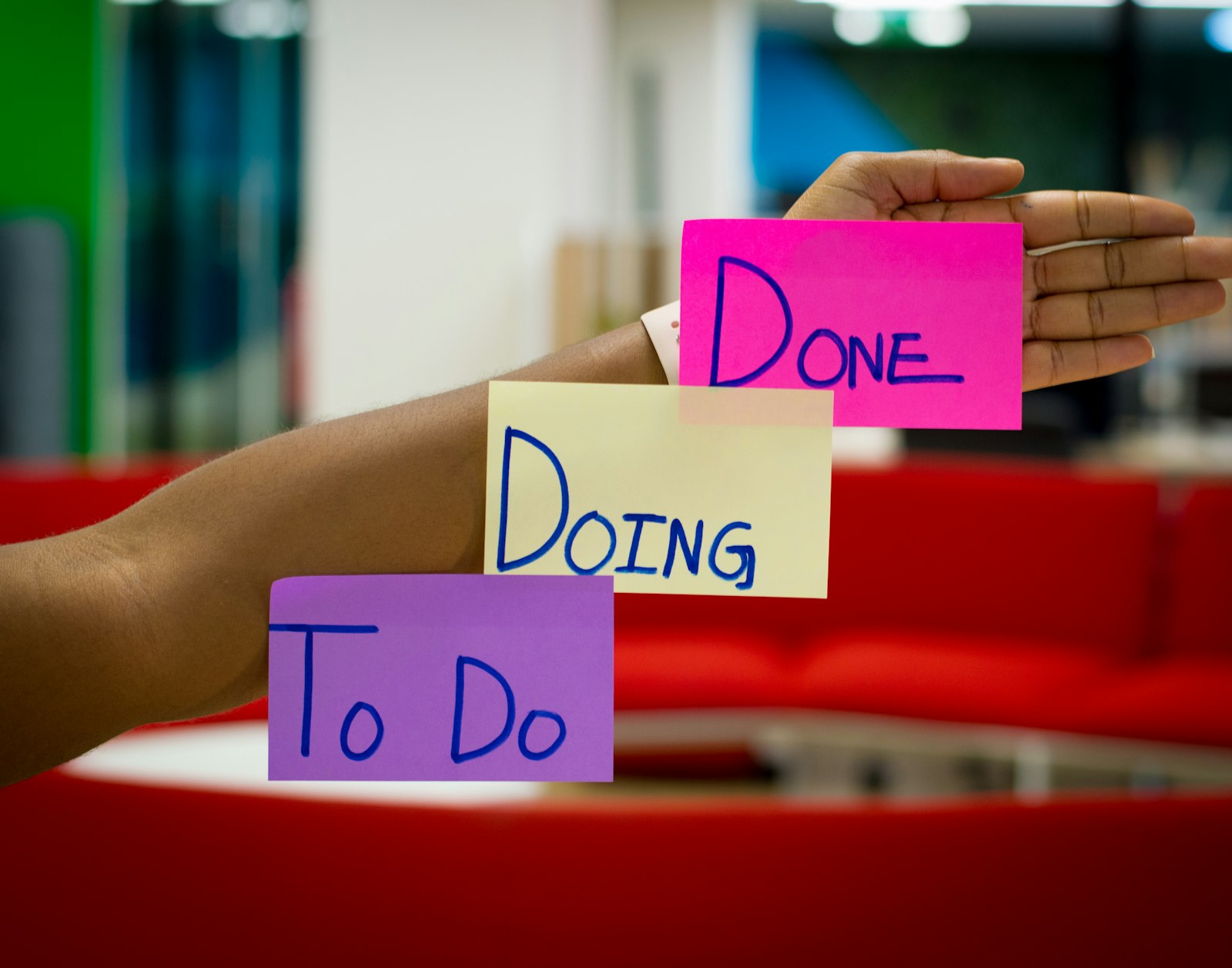
I used to spend my Monday mornings in a state of terminal dread. It wasn't just the return to work; it was the "admin tax" that came with it. I would ritualistically copy data from my emails into a spreadsheet, manually rename files for my project folders, and ping my team with the same status updates I'd sent the week before. It felt like I was a highly paid data-entry clerk who occasionally got to do creative work. Then, I discovered the world of no-code task automation, and honestly, it felt like finally hiring a personal assistant who never sleeps and doesn't mind repetitive tasks.
You don't need to be a software engineer to build a sophisticated system that handles your chores. Today, the tools available are so intuitive that if you can draw a flowchart, you can build an automation. We're moving into an era where "coding" is being replaced by "logic," and that's an incredible shift for anyone who feels bogged down by the digital mundane. I've spent the last few months refining my own personal system, and I want to show you exactly how to build your own from the ground up without looking at a single line of Python.
Shifting Your Perspective: The Automation Mindset
Before you even open a browser tab, we need to talk about the mental shift required for successful automation. Most people approach their work linearly: they see a task, they do it, and they move on. To build a system, you have to start thinking in "Triggers" and "Actions." A trigger is the 'if'—the event that kicks everything off. The action is the 'then'—the result you want to happen automatically.
I like to start by doing an "audit of the annoying." For one week, I tracked every task I did more than three times. This included things like saving email attachments to Google Drive, posting my new blog articles to LinkedIn, or creating a Trello card whenever a client signed a contract. If it's repetitive and follows a predictable rule, it's a prime candidate for automation. You'd be surprised how much of your "work" is actually just moving data from Point A to Point B.
The goal isn't to automate everything at once. That's a recipe for a broken system and a lot of frustration. Instead, we aim for "micro-wins." Automating just one 5-minute task that you do daily saves you over 20 hours a year. When you stack those wins, you're not just saving time; you're preserving your mental energy for the deep creative work that actually moves the needle. It's about building a digital moat around your focus time.

Selecting Your Nerve Center: Zapier vs. Make vs. Relay
If you want to graduate from rules to reasoning, start with how to build your first AI agent workflow step by step.
A fun weekend project: how to build an AI website with NotebookLM and Gemini using the same no-code mindset.
Every automation system needs a "nerve center"—the platform that connects all your different apps. For most people, the choice comes down to Zapier and Make (formerly Integromat). Zapier is the industry heavyweight. It's incredibly user-friendly and supports thousands of apps. If you want something that just works with a "set it and forget it" vibe, Zapier is usually your best bet. It’s what I used when I first started because the interface is so clean and guided.
However, if you're someone who likes to get under the hood, Make offers more granular control and is often significantly cheaper for high-volume tasks. It looks a bit more like a visual map, allowing you to branch off into complex logic paths. Recently, I've also been looking at Relay.app, which is specifically designed for team workflows and includes "human-in-the-loop" steps—meaning the automation pauses and waits for you to click 'Approve' before continuing. This is great for tasks where you want the speed of AI but the safety of a final check.
When choosing, think about your existing tech stack. Most of these platforms have "integrations" pages. Check if your must-have apps—like Slack, Notion, or Gmail—are supported. While there are advanced ways to connect unsupported apps using Webhooks, we're keeping it simple for now. Stick to the platforms that play nice with the tools you already use daily. If you're wondering how these hubs fit into the broader AI landscape, you might want to read about how AI tools are changing work more broadly.
Step-by-Step: Your First Basic Automation
Let’s build something real. One of the most common pain points is keeping track of tasks that arrive via email. We’re going to build a workflow that says: "Whenever I star an email in Gmail, create a new task in my project management tool (like Todoist or Notion)." This simple bridge ensures nothing falls through the cracks without you having to manually copy-paste.
First, log into your chosen automation platform and select Gmail as your Trigger app. You'll choose the trigger event "New Starred Email." You’ll need to grant the platform permission to view your emails—don’t worry, these big-name tools use secure OAuth tokens. Next, you’ll set up the Action. Choose your task manager (e.g., Todoist) and select "Create Task." The magic happens in the mapping step. You’ll see a list of data points from your email: the Subject, the Body, the Date. Drag the "Subject" into the task name field and the "Body" into the task description.
Once you hit "Test," check your task manager. If everything worked, you’ll see a brand-new task waiting for you. It feels like a small thing, but the psychological relief of knowing a "star" equals a "task" is immense. You've just created a reliable system that works while you sleep. I've found that using no-code task automation for these small administrative bridges is the best way to gain confidence before tackling bigger projects.
Adding Brains to the Brawn: Integrating AI
Basic automations are great for moving data, but adding AI turns them into intelligent systems. Instead of just moving an email's body into a task, you can send that body to an AI model first to summarize it. This is where things get really exciting. Imagine getting a task name that says "Follow up on Invoice #402" instead of a chaotic email subject like "Fwd: Fwd: question about the thing we discussed."
Most automation platforms now have direct integrations with OpenAI (ChatGPT) or Anthropic (Claude). You can insert an "AI step" in the middle of your workflow. For example, your flow could be: 1. New Email received -> 2. Send email text to ChatGPT -> 3. Request a 1-sentence summary and an urgency rating -> 4. Send that summary and rating to your Slack notifications. You're effectively building a custom filter that prioritizes your work for you.
I’ve seen this work wonders for content creators who need to stay organized. If you're managing a busy schedule, you might combine this with best AI meeting assistants to automatically summarize your Zoom calls and push the action items into your CRM. The AI acts as the "interpreter" between the messy real world and your structured database. It's the difference between a dumb pipe and a smart filter.
The "Automated Library": Managing Your Knowledge
We all suffer from "Tab Fatigue"—the habit of opening twenty articles we mean to read later, only for them to sit there until our browser crashes. You can build a person automation system to handle your personal knowledge management. I use a flow where any link I save to a specific "Read Later" app is automatically parsed, summarized by AI, and filed into my Notion database under a specific category.
This setup allows me to search my own brain. If I remember reading something about "no-code task automation" three months ago, I don't have to hunt through my browser history. I just go to my Notion "Library" and search. The automation did the heavy lifting of tagging and filing while I was busy doing other things. This kind of systematic internal linking is vital for staying informed in an AI-heavy world. For more on this, check out our guide on AI knowledge management tools.
Another trick is to automate your inspiration. I have a trigger that watches my "liked" photos on Instagram or Pinterest and saves a copy into a dedicated "Moodboard" folder in Dropbox. This creates a permanent, searchable archive of things I find beautiful or interesting, without me having to manually download a single image. It’s about building a secondary brain that grows on its own as you browse the web.
Taming the File System Jungle
Desktop clutter is the digital equivalent of a messy desk. It creates low-level anxiety every time you look at it. No-code tools can act as a digital janitor. You can set up "Watch Folders" on your computer or in the cloud (Google Drive, Dropbox, OneDrive). Whenever a new PDF is added to my "Receipts" folder, an automation triggers that reads the document, extracts the vendor name and total amount using AI, and adds it to my expense spreadsheet.
If you work with a lot of documents, this is life-changing. You can even set up "conditional logic." For instance, if a file name contains the word "Contract," move it to the "Legal" folder and email a copy to your lawyer. If it contains "Invoice," move it to "Accounting." You are essentially creating a self-organizing filing cabinet. The time you save not searching for "that one PDF with the weird name" is time you get back for your creative life.
I personally use this for my creative assets. When I generate an image using AI tools, I have a script that watches my download folder and moves anything with "Midjourney" in the metadata to a specific library. If you're deep into local AI, you might find similar efficiencies when dealing with open-source AI models and the massive datasets they often involve. The key is to never let a file sit in "Downloads" for more than ten minutes.

Keeping the Machine Running: Monitoring and Errors
Here is the honest truth: automations break. An app updates its API, a password changes, or a service goes down, and suddenly your perfectly tuned system stops working. This is why monitoring is crucial. Most platforms like Zapier will send you an email if a "Zap" fails, but I prefer to create a "Failure Dashboard." I have a single Slack channel where all automation errors are posted. If something breaks, I see it immediately.
Don't let the fear of breakage stop you. Usually, the fix is as simple as re-connecting an account. However, you should always design your systems with "fail-safes." For example, don't build an automation that deletes the original file after moving it until you've tested it for at least a week. Use a "Copy" action instead of a "Move" action initially. This way, if the automation fails, you still have your original data safe and sound.
I also recommend doing a "Systems Check" once a month. Review your active automations and ask: "Am I still using this? Is it still saving me time?" Sometimes we automate tasks we no longer need to do at all. The best automation is the one you can delete because you've simplified the process so much that the task itself has disappeared. Efficiency isn't just about doing things faster; it's about doing fewer things.
Taking It Further: Webhooks and Custom Logic
Once you've mastered the basics, you might hit a wall where an app doesn't have a direct integration. This is where "Webhooks" come in. Think of a Webhook as a digital megaphone. One app screams "Hey, something happened!" and your automation platform is listening. It's a bit more technical but still doesn't require writing code—you just copy and paste a URL from one app to the other.
You can also use "Paths" or "Routers" to create complex decision trees. Let's say you're a freelancer. A new lead fills out your contact form. If they select "Budget: Under $1000," the automation sends them a polite email with links to your DIY resources. If they select "Budget: Over $5000," it sends you a high-priority Slack notification and adds them to your CRM for immediate follow-up. This allows you to scale your personal "touch" without actually being present for every interaction.
Finally, consider the "Human-in-the-loop" factor. As I mentioned earlier, some modern platforms allow you to insert a manual approval step. This is perfect for things like social media posting. You can have an AI generate the post and curate the image, but the automation waits for your "OK" before it goes live on LinkedIn. It gives you the scale of a machine with the quality control of a human. If you're interested in how this looks at a larger scale, our piece on ai marketing automation for small business covers these workflows in depth.
Your First Week of Automation: A Mini-Plan
If you're feeling inspired but overwhelmed, here is your game plan for the next seven days. Don't try to build the "God-system" on day one. Start small and build momentum. Monday: Audit your day and find one task that takes 10 minutes and happens every day. Tuesday: Sign up for a free trial of Zapier or Make. Wednesday: Build your first "If This, Then That" connection between your email and your task manager. Thursday: Test it. Star five emails and see if they show up in your to-do list.
Friday: Try to add one "AI step" to that workflow—ask ChatGPT to categorize the task for you. Saturday and Sunday: Turn the system off and see if you miss it. Most people realize just how much heavy lifting their automations were doing only once they stop. By the end of the week, you won't just have a tool; you'll have a new way of interacting with your digital world. You're no longer just a user of software; you're a builder of systems.
Building a no-code task automation system is a journey, not a destination. As you get more comfortable, you'll find yourself looking at every chore and thinking, "Can I automate this?" Usually, the answer is yes. And every time the answer is yes, you buy back a little more of your life. If you found this helpful, subscribe to our newsletter for weekly tips on reclaiming your time with AI, or explore our other guides on the best AI productivity tools for 2026.
Key takeaways
- Automation is a mindset shift from doing tasks to building systems.
- Zapier and Make are the leading platforms for connecting apps without code.
- Start with 'Micro-wins' to avoid overwhelm and build confidence.
- Integrating AI (like ChatGPT) allows your system to handle unstructured data.
- Regular maintenance and error monitoring are essential for long-term success.
Frequently asked questions
Do I really need to know how to code to use these tools?
No coding knowledge is required. These platforms use 'drag-and-drop' interfaces and visual builders where you connect blocks of logic. If you can use a spreadsheet or a basic website builder, you can learn no-code automation.
Is it expensive to run a personal automation system?
Most platforms like Zapier and Make offer generous free tiers that allow you to run a handful of simple automations. As your system grows more complex or handles higher volumes of data, you may need to upgrade to a paid plan, typically starting around $15-$20 per month.
Is it safe to give these tools access to my email and files?
Yes, it's very safe as long as you use reputable platforms like Zapier, Make, or Microsoft Power Automate. These companies use bank-level encryption and secure authentication (OAuth) so they never actually see your passwords, only the specific data you authorize.
What if the app I use isn't supported by Zapier or Make?
If an app has an 'API' (Application Programming Interface), it can usually be connected. Popular apps like Slack, Gmail, Notion, and Trello have 'Native Integrations' which make them incredibly easy to connect with just a few clicks.
How do I prevent my automations from becoming a mess?
Start with one very simple, high-frequency task like saving email attachments. Don't try to automate your entire life in one day. Build one 'Zap' or 'Scenario,' let it run for a week, and then add the next piece once you're comfortable.
External resources

About the author
Ahmed Bahaa Eldin
Staff Writer at ToolMind AI
Ahmed Bahaa Eldin covers the AI tools changing how teams and individuals work. His reporting blends hands-on testing with practical insights for professionals looking to get more done. Have a tip or product to recommend? Reach the team via the contact page.
Related articles

How AI Tools Are Changing the Way We Work in 2026
The AI productivity story isn't about replacement. It's about a quieter shift — fewer meetings, faster drafts, and a strange new layer of agents quietly handling the busywork.

Best AI Meeting Assistants in 2026: Otter, Granola, Fathom, and the Quiet Standouts
AI note-takers went from novelty to default in 2026. We tested 12 of them on real calls — sales, design, product, hiring — to find the ones worth letting into your meetings.

Best AI Knowledge Management Tools in 2026: Notion AI, Mem, Reflect, and Beyond
Personal knowledge management used to be filing. With AI on top, it's a real intellectual partner. We tested the major tools to find which ones actually deliver.