AI Image & Design Tools
The Non-Designer's Guide to Getting Great Results from Image Generators
Think you need a design degree to create stunning visuals? Think again. We explore how anyone can use AI image generators to produce professional-grade graphics, with simple strategies to get the perfect results every time.
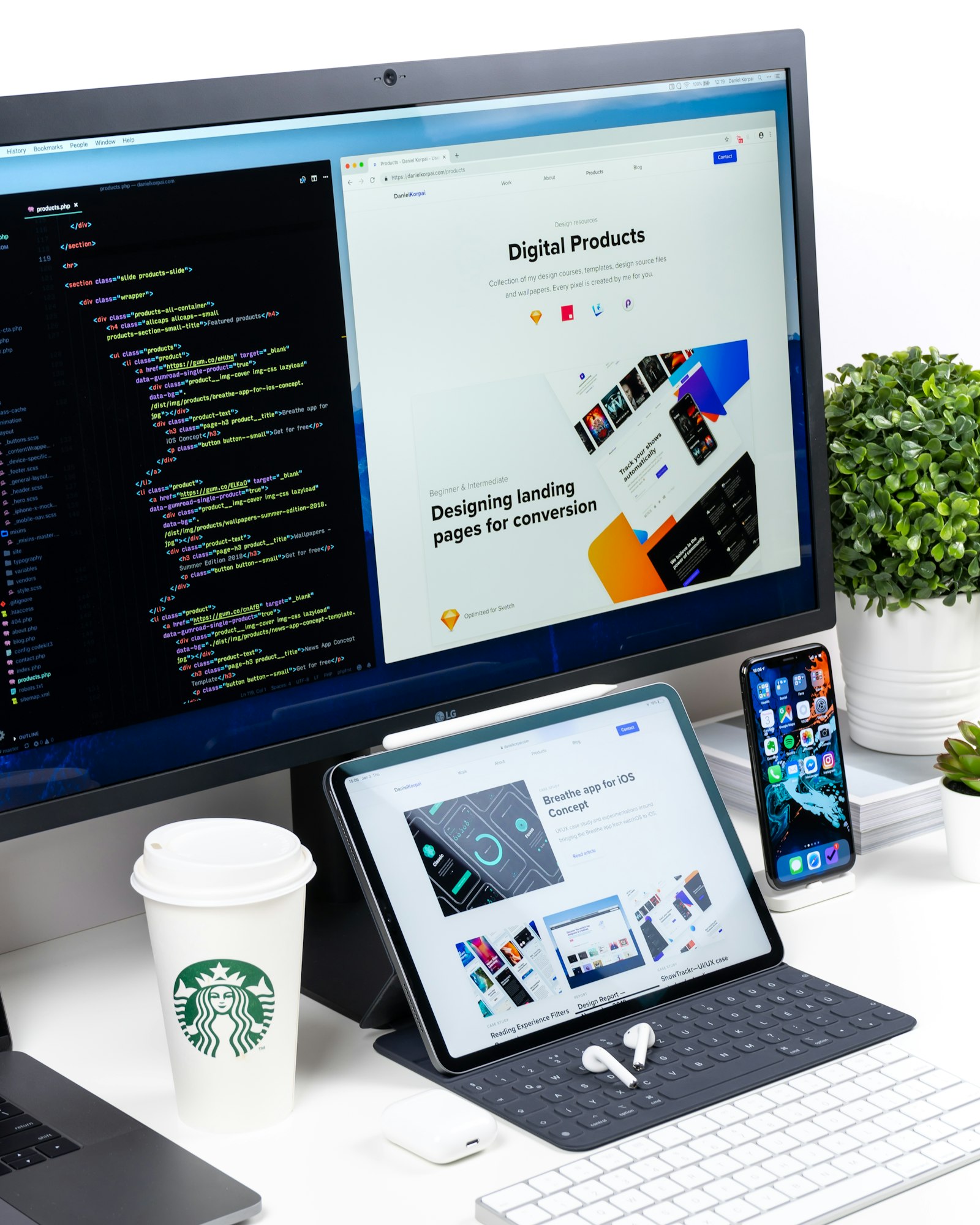
I still remember the first time I sat down in front of a professional design suite. It felt like walking into the cockpit of a commercial jet without a license. There were layers, masks, vectors, and pen tools that seemed to have a mind of their own. For those of us who weren't born with a stylus in hand, creating high-quality visuals has always been a gatekept skill. But that changed almost overnight with the rise of modern AI. Today, the barrier to entry isn't your ability to draw a perfect curve; it's your ability to describe what you see in your mind's eye. Using AI image generators for non-designers is the ultimate equalizer, turning a casual brainstorm into a gallery-ready asset in seconds.
We've moved past the "uncanny valley" phase where every AI face had seven fingers and melting eyes. Now, we're in an era of hyper-realism and incredible stylistic control. Whether you’re a small business owner needing a hero image for your website, a blogger looking for that perfect featured graphic, or just someone who wants to see a cyberpunk version of their pet cat, the tools are ready. The trick is knowing how to talk to them. In this guide, I’m going to walk you through exactly how to bridge the gap between "I have an idea" and "this looks professional" without ever needing to touch a Photoshop brush.
Understanding the Current Landscape of AI Art
Before we get our hands dirty with prompting, we need to know what we're working with. The world of AI imagery is dominated by a few heavy hitters, each with its own personality. You've likely heard of Midjourney, DALL-E, and Stable Diffusion. If you're just starting out, DALL-E (built into ChatGPT) is often the friendliest entry point because it understands plain English remarkably well. However, if you want that "wow" factor that looks like a high-end magazine shoot, Midjourney is usually the gold standard. For a deeper dive into the technical nuances, you might find our comparison of Midjourney vs. DALL-E vs. Stable Diffusion helpful.
What the non-designer needs to realize is that these models don't "think." They predict pixels based on patterns they've learned from billions of images. When you type in a prompt, the AI isn't searching a database of photos; it’s literally painting from scratch based on associations. "Golden hour" isn't just a phrase to the AI; it’s a specific set of warm orange and yellow light values. Understanding this "associative" nature is the secret to getting better results. You aren't giving orders to a person; you're providing a recipe for an algorithm to bake.
The Anatomy of a Perfect Prompt
The most common mistake I see beginners make is being too brief. Typing "a cat in a hat" into an image generator is like asking a chef for "some food." You'll get something, but you probably won't love it. To get professional-grade results, you need to provide structure. I like to use a simple formula: Subject + Action + Environment + Lighting + Style + Composition.
Let’s break that down. Instead of "a cat," try: "An orange tabby cat (Subject) wearing a tiny velvet crown (Action/Detail), sitting on a mahogany library desk (Environment), bathed in soft morning sunlight (Lighting), in the style of a 35mm film photograph (Style), close-up shot with a blurred bookshelf background (Composition)." See the difference? By being specific, you remove the AI’s need to guess. When the AI guesses, it usually defaults to the most generic, "stock photo" version of your idea. We want to avoid generic at all costs.
I’ve found that the "Style" part of the prompt is where the magic really happens. This is where non-designers can punch above their weight. You don't need to know how to paint in oils; you just need to know the name of the style. Mentioning things like "minimalist Bauhaus poster," "Ukiyo-e woodblock print," or "cinematic digital art" immediately gives your image a cohesive, intentional look that separates it from amateur "AI-looking" outputs.
Lighting and Texture: The Secret Sauce
If you want your images to stop looking like flat plastic, you have to talk about light. In the design world, light is everything. For those of us using AI image generators for non-designers, we can use "cheat codes" to simulate professional lighting setups. Terms like "rim lighting" (which creates a glow around the edges of your subject) or "volumetric lighting" (think "god rays" shining through forest trees) add instant depth.
Texture is the second half of that battle. If you’re generating a product shot, mention materials. Is it brushed aluminum? Matte plastic? Soft linen? The AI is incredibly good at simulating how light hits different surfaces, but you have to tell it what surface it’s dealing with. I often use the phrase "tactile texture" or "highly detailed grain" to make sure the image doesn't look too smooth and artificial. Real life has imperfections, and adding those back into your prompts makes the results much more believable.
Escaping the Uncanny Valley: Humans and Hands
We have to talk about the elephant in the room: people. AI has historically struggled with "hallucinating" extra limbs or making skin look like polished wax. While models like Midjourney v6 and the latest versions of Flux have mostly solved this, it’s still a hurdle for the uninitiated. My advice for non-designers? Focus on the "vibe" rather than perfect anatomy if you're struggling. Using prompts like "candid photography" or "street style" helps the AI lean into a more natural, less posed (and therefore less creepy) aesthetic.
Another pro tip for getting better humans: give them something to do. A person "standing" is hard for an AI because it has to figure out all the proportions from scratch. A person "holding a coffee cup" or "typing on a laptop" gives the AI a physical anchor point for the hands. It grounds the scene. If you find yourself needing specific branding assets, you might want to see how these tools are being used specifically for AI logo design where precision is even more critical.
Workflow Integration: Making it Useful for Real Projects
Generating a cool image is fun, but using it for work is the goal. For many of us, the image generator is just the first step. You might take an AI-generated background and bring it into a tool like Canva to add text. Or maybe you use it to create unique social media assets that don't look like everyone else’s Unsplash downloads. The key is consistency. If you're building a brand, you want your images to feel like they belong to the same family.
To achieve this, I recommend keeping a "style document." When you find a prompt that works—maybe a specific color palette or a certain "grainy film" look—save that prompt. You can then swap out the subject while keeping the rest of the prompt the same. This ensures that the hero image on your blog matches the graphic in your newsletter. If you're juggling multiple content types, check out our guide on AI tools for bloggers to see how to weave these visuals into your writing workflow. High-quality visuals can significantly boost engagement rates on platforms like LinkedIn and Pinterest, where the "scroll-stop" factor is everything.
The Ethical and Legal Side of AI Imagery
I wouldn't be doing my job if I didn't mention the "gray areas." As a non-designer, it’s easy to get swept up in the excitement, but there are things to keep in mind. Currently, in many jurisdictions (including the US), AI-generated images cannot be copyrighted. This means if you create a "mascot" using AI, you might not have the legal standing to stop someone else from using it. For most casual business uses—like blog headers or social posts—this isn't a huge deal, but for core brand assets, it’s a risk to consider.
There's also the question of artist styles. Many AI models were trained on the work of living artists without their explicit consent. To be an ethical "AI-prompter," I generally suggest avoiding prompts that use the specific name of a living artist (e.g., "in the style of [Specific Person]"). Instead, use descriptive terms for the style itself. Instead of naming an artist, describe the "vibrant Impressionism" or "dramatic chiaroscuro lighting." This not only yields more original results but also keeps you on the right side of the ongoing creative conversation.
Beyond the Prompt: Advanced Tools for the Ambitious
Once you've mastered the basic text-to-image prompt, you might find yourself wanting more control. Maybe the AI got everything right except for one small detail. This is where "Inpainting" and "Generative Fill" come in. Tools like Adobe Firefly or Midjourney's "Vary Region" allow you to highlight a specific part of an image and tell the AI to change only that part. It’s like having a magic eraser that replaces things rather than just removing them.
I often use this to fix small errors or to customize a generic scene. Maybe I generated a beautiful office space, but I want a specific coffee mug on the desk. Instead of re-rolling the whole image and losing the lighting I liked, I just "paint" the mug in. This level of granular control is what truly turns a non-designer into a digital creator. We are also seeing these capabilities move into motion, as discussed in our look at AI video generators, though the learning curve there is a bit steeper.
Iterative Editing and Filling the Gaps
Rarely is the first image "the one." Think of AI generation as an iterative process. When I start a project, I usually run 5-10 variations of a prompt to see how the AI interprets my keywords. Once I see one I like, I "upscale" it. Upscaling isn't just about making the image bigger; modern AI upscalers actually add detail that wasn't there before, sharpening edges and cleaning up noise.
Don't be afraid to talk back to the AI. If the colors are too muted, add "vibrant, high-saturation" to your next attempt. If the composition feels cramped, add "wide-angle lens" or "scenic view." This back-and-forth is where the creative work actually happens. You are the director, and the AI is your camera crew. The more feedback you give, the better the final "take" will be. It’s a exhilarating feeling when that perfect image finally clicks into place.
The Future of Visual Storytelling
We are standing at the beginning of a massive shift in how stories are told. Visual literacy used to be a specialized skill, but it’s becoming a universal one. As AI image generators for non-designers continue to evolve, we’ll see more integration into our everyday tools. Soon, you won’t go to a separate website to generate an image; it’ll be a button in your email client, your slide deck software, and your word processor. The logic remains the same: the better you can describe what you want, the better the world will see your vision.
I’ve seen people use these tools to visualize their dream homes, illustrate children's books for their kids, and create stunning presentations that would have cost thousands in stock photography fees just a few years ago. The power is truly in your hands (and your keyboard). The best way to learn is to simply go play. Start with a silly prompt, see what happens, and refine it. Before you know it, you’ll be creating visuals that you never thought possible.
Thanks for coming on this journey with me. This technology is moving fast, and it can feel overwhelming, but remember that at its core, it’s just a new tool for your imagination. If you enjoyed this guide and want to stay updated on the latest AI tools and techniques that make work (and life) easier, consider subscribing to our newsletter below. We’re constantly testing new workflows so you don’t have to!
Key takeaways
- AI image generators allow non-designers to create high-quality visuals using simple text commands.
- A successful prompt should include subject, action, environment, lighting, style, and composition.
- Using specific lighting terms like 'volumetric' or 'rim lighting' adds professional depth to images.
- Iterative prompting and upscaling are essential steps to refine an image from good to great.
- Ethical prompters should focus on describing styles rather than using the names of specific living artists.
Frequently asked questions
What is the easiest AI image generator for a total beginner?
The best starting point is DALL-E 3, which is available directly within ChatGPT. It’s designed to understand natural conversational language, making it very intuitive for people who don't know technical design terminology yet.
How do I keep my AI images from looking fake or plastic?
Try adding phrases like '35mm film photography,' 'cinematic lighting,' or 'tactile texture' to your prompts. Avoiding keywords like 'hyper-realistic' (which can sometimes lead to a plastic look) and instead describing specific lighting like 'golden hour' or 'soft rim lighting' often produces more professional results.
Can I legally use AI-generated images for my business?
The legality is still evolving, but currently, AI-generated images generally cannot be copyrighted in the US. You can use them for commercial projects like ads or blog posts, but you won't 'own' the rights to prevent others from using the exact same image.
Which AI generator is best for high-end professional photography looks?
Midjourney is widely considered the best for high-end aesthetic quality, as it has a built-in 'artistic' bias that makes almost anything look good. However, Stable Diffusion offers the most control for those willing to handle a slightly steeper learning curve.
What should I do if the AI keeps messin up small details like hands?
Always proofread the details! AI often struggles with logic—clocks might have thirteen numbers or people might be holding things incorrectly. Use 'Inpainting' tools to fix these specific errors rather than discarding an otherwise great image.
External resources

About the author
Ahmed Bahaa Eldin
Staff Writer at ToolMind AI
Ahmed Bahaa Eldin covers the AI tools changing how teams and individuals work. His reporting blends hands-on testing with practical insights for professionals looking to get more done. Have a tip or product to recommend? Reach the team via the contact page.
Related articles

Top 5 AI Image Generators for Designers in 2026
Midjourney is no longer the only serious option. We tested five generators on real client briefs — here's what actually shipped, and what just made nice screenshots.
Midjourney vs DALL·E vs Stable Diffusion in 2026: A Designer's Honest Comparison
Three flagship image generators with very different DNA. We ran a controlled test across 1,000 prompts to find which one wins for design, marketing, and creative work in 2026.

Best AI Logo Generators in 2026 — Tested for Real Brands
AI logo tools have quietly closed the gap with junior designers — at least for the first round. We tested the major players to find which ones produce real, usable identities in 2026.